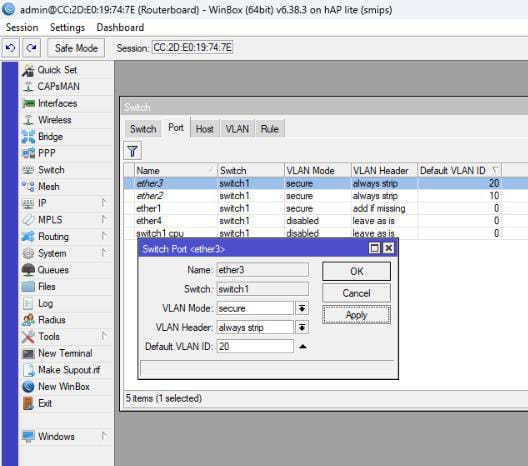
C. Konfigurasi Mikrotik 2 (Router sebagai Switch)
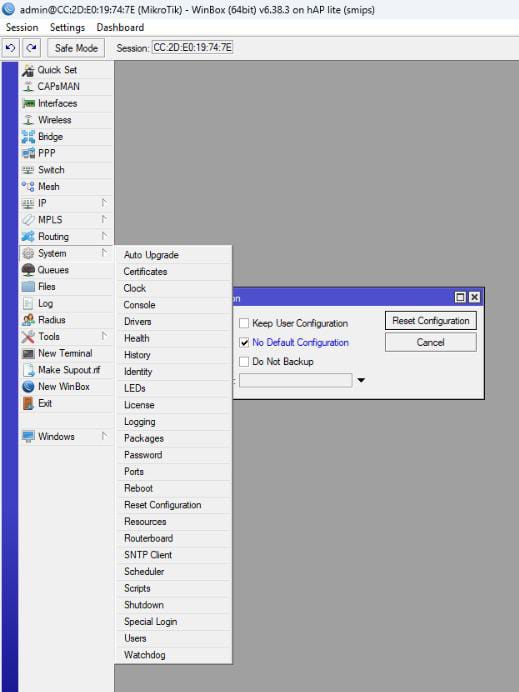
1. Bersihkan Semua Konfigurasi
- Klik
System→Reset Configuration - Centang (✓) "No Default Configuration"
- Klik Apply → OK
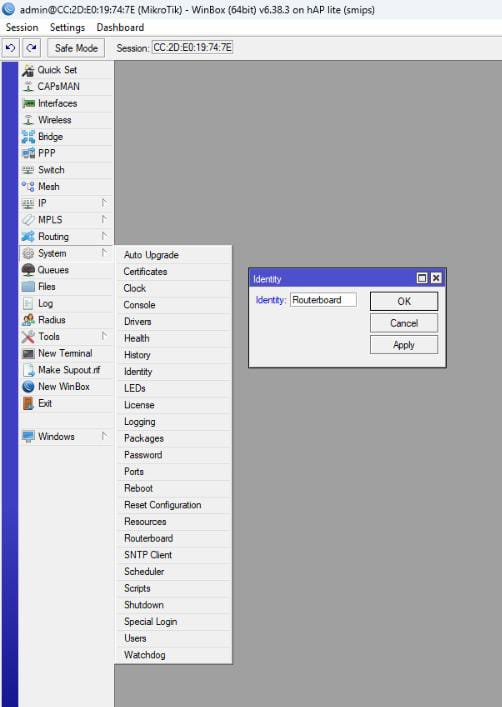
2. Berikan Identitas Pada Mikrotik 2
- Klik
System→Identity - Masukkan nama
Routerboard - Klik Apply → OK
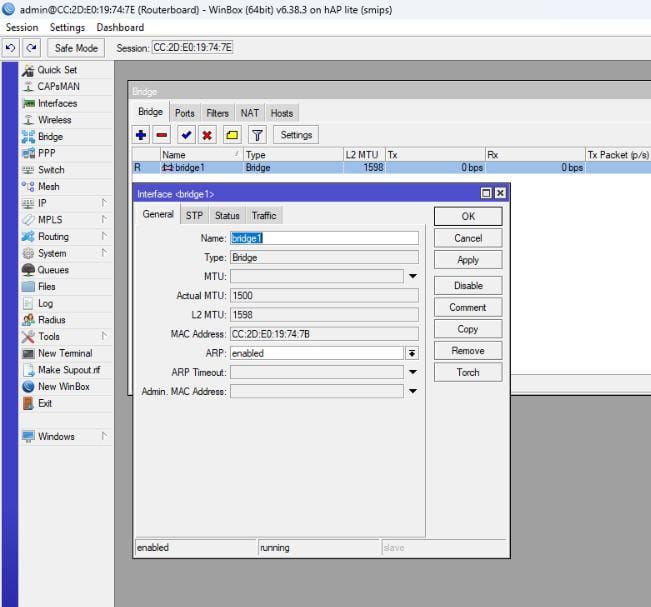
3. Tambahkan Bridge
- Klik
Bridge→Bridge→ Klik "+" - Klik Apply → OK
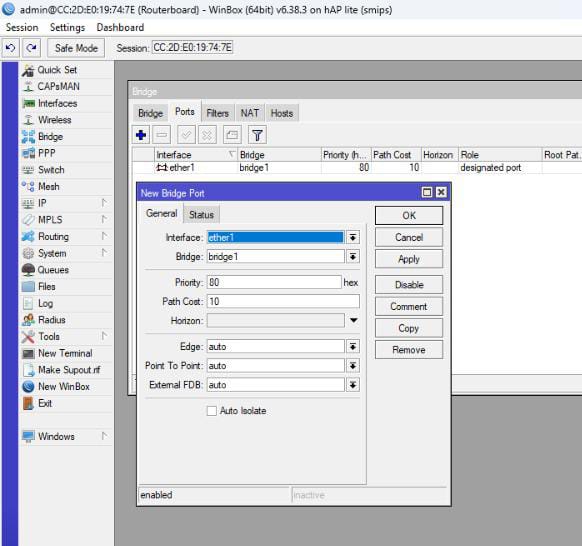
4. Tambahkan Port Bridge
Klik Bridge → Port → Klik "+"
a. Ether 1:
- Interface:
ether1 - Klik Apply → OK
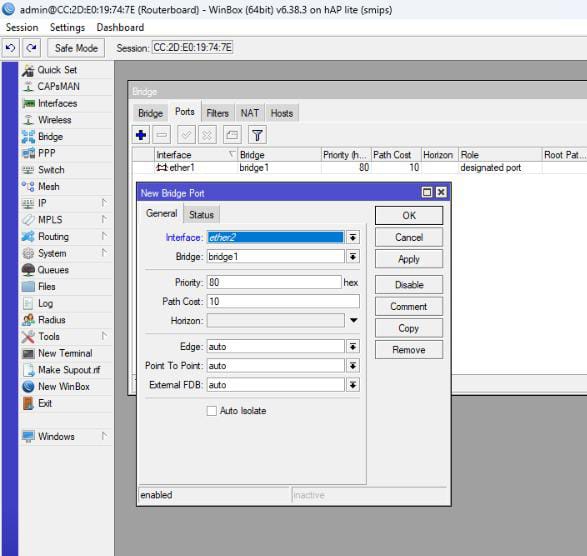
b. Ether 2:
- Interface:
ether2 - Klik Apply → OK
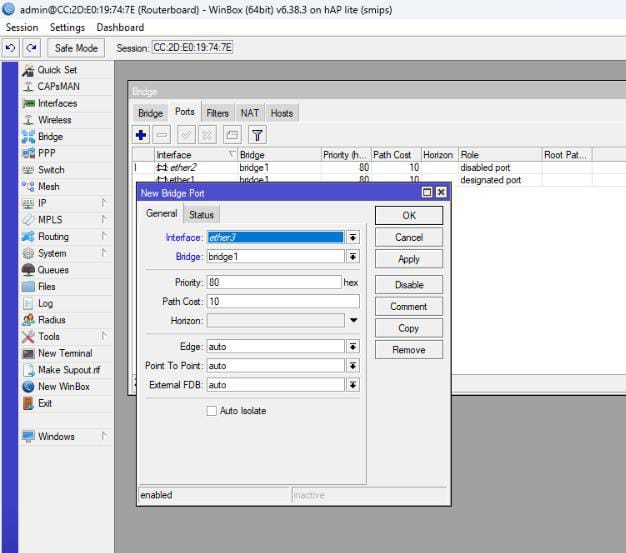
c. Ether 3:
- Interface:
ether3 - Klik Apply → OK
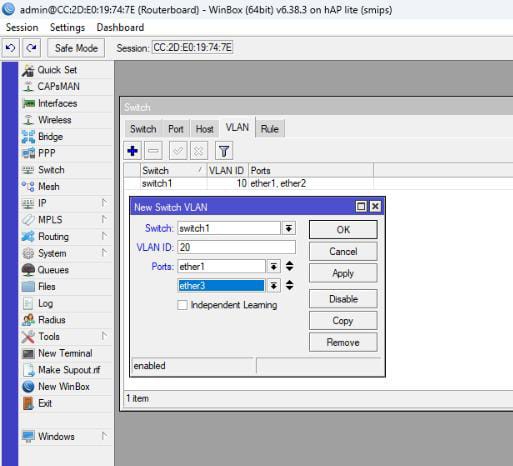
5. Menambahkan Switch VLAN
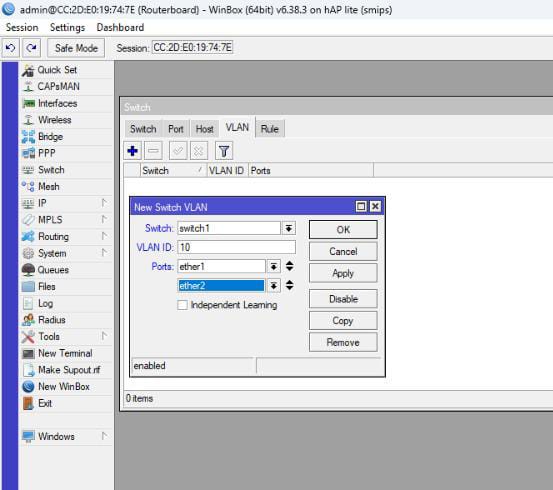
Klik Switch → VLAN → Klik "+"
a. VLAN 1:
- Switch:
switch1 - VLAN ID:
10 - Ports:
ether1,ether2 - Klik Apply → OK
b. VLAN 2:
- Switch:
switch1 - VLAN ID:
20 - Ports:
ether1,ether3 - Klik Apply → OK
6. Atur Port Switch
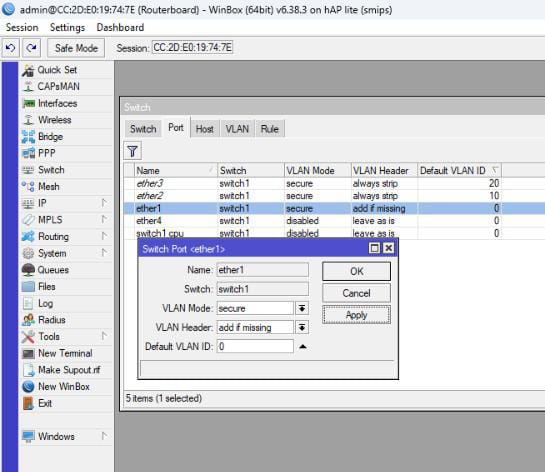
Klik Switch → Port
a. Ether 1 (Trunk):
- Klik 2x
ether1 - VLAN Mode:
secure - VLAN Header:
add if missing - Klik Apply → OK
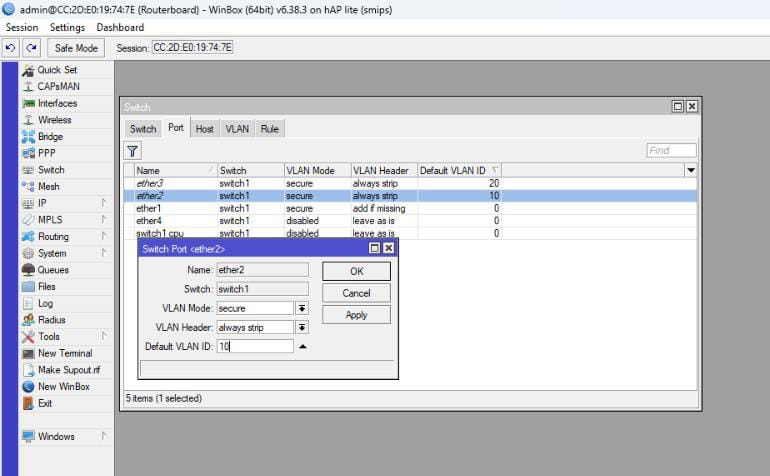
b. Ether 2 (Access VLAN 10):
- Klik 2x
ether2 - VLAN Mode:
secure - VLAN Header:
always strip - Default VLAN ID:
10 - Klik Apply → OK
c. Ether 3 (Access VLAN 20):
- Klik 2x
ether3 - VLAN Mode:
secure - VLAN Header:
always strip - Default VLAN ID:
20 - Klik Apply → OK